Adjusting The Licence Pool Size
The number of shared computer licences in the licence pool is initially set when activating the desktop server. If your needs change, i.e. you have more users on the server concurrently than expected, you can adjust the licence pool size accordingly via the administration console.
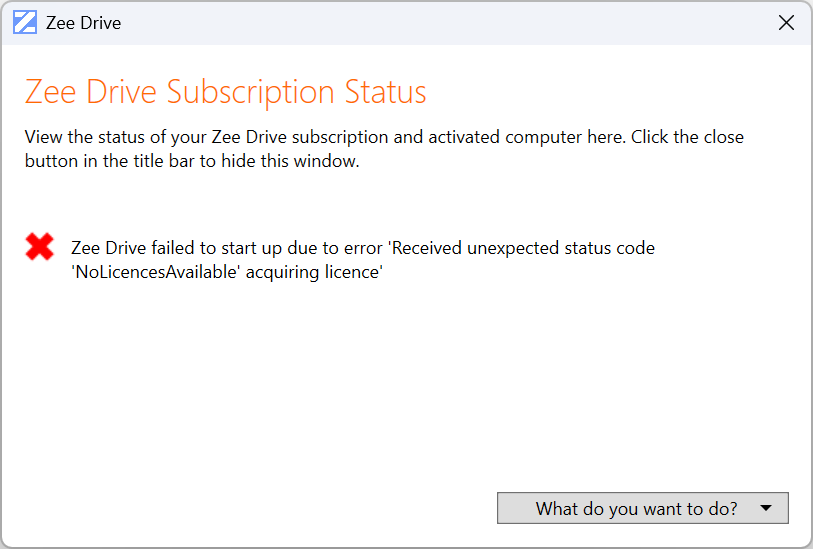
If there are no remaining unassigned shared computer licences in the licence pool, then when the next user signs in to the server, ZeeDrive will fail to start-up with an error:

NoLicencesAvailable from ZeeDriveA user receiving the error NoLicencesAvailable when signing in to Windows, can either wait for another user to sign out of the server, then, sign back in to the server in which case ZeeDrive will attempt to acquire a licence again, or, you can increase the size of the server licence pool.
The more shared computer licences in the server licence pool means the more concurrent users that are supported on the server. E.g. if you have 10 shared computer licences in the server licence pool, then up to 10 users can sign in to the server at the same time and have ZeeDrive start-up to map their drives. See Licence Desktop Servers for more information on how to calculate how many licences you need for the licence pool.
Here are the steps to increase the size of your desktop server licence pool. These steps are also applicable to reduce the size of the licence pool:
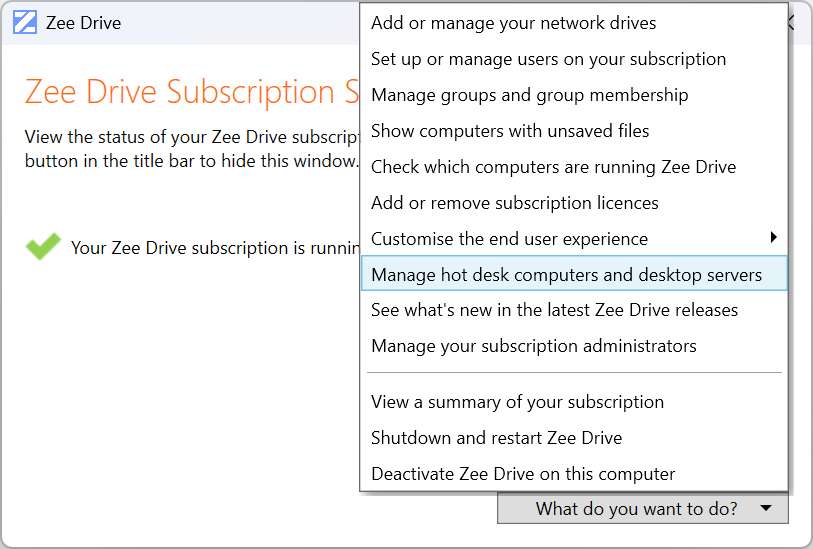
From the Administration Console, click the action button then click the "Manage hot desk computers and desktop servers" option
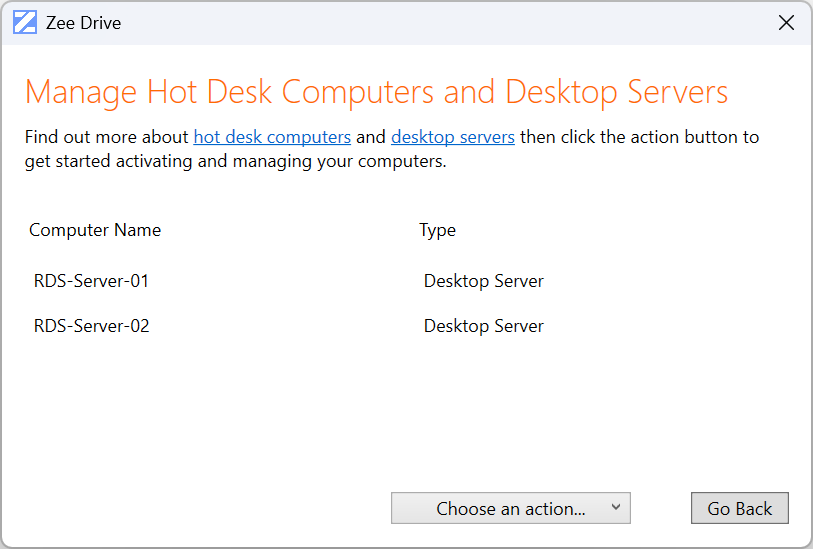
A list of the desktop servers activated on the subscription will show. In the example below, there are two desktop servers. Servers can share the same licence pool (a licence pool can be shared between multiple servers) or, each server can have their own licence pool

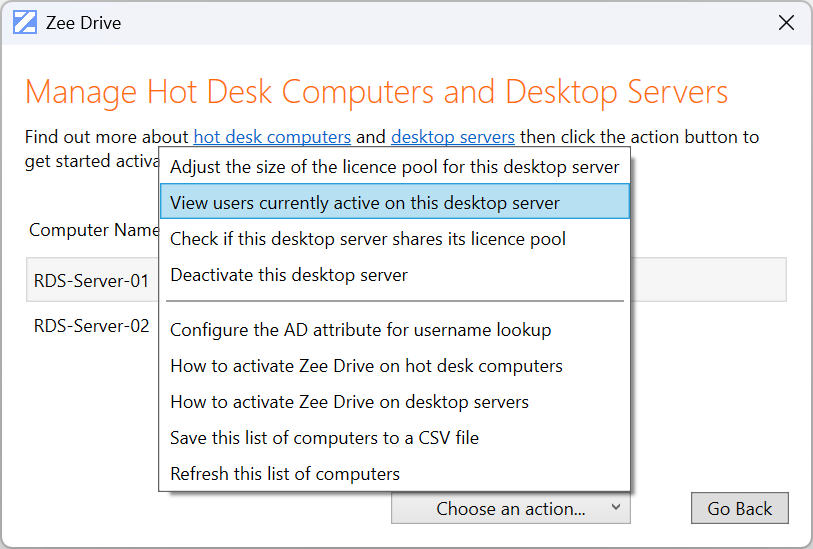
You may want to verify which users are currently consuming shared computer licences from the licence pool. Select a server (note that if they are joined to the same licence pool it doesn't matter which you select) then click the action button and click the option "View users currently active on this desktop server"

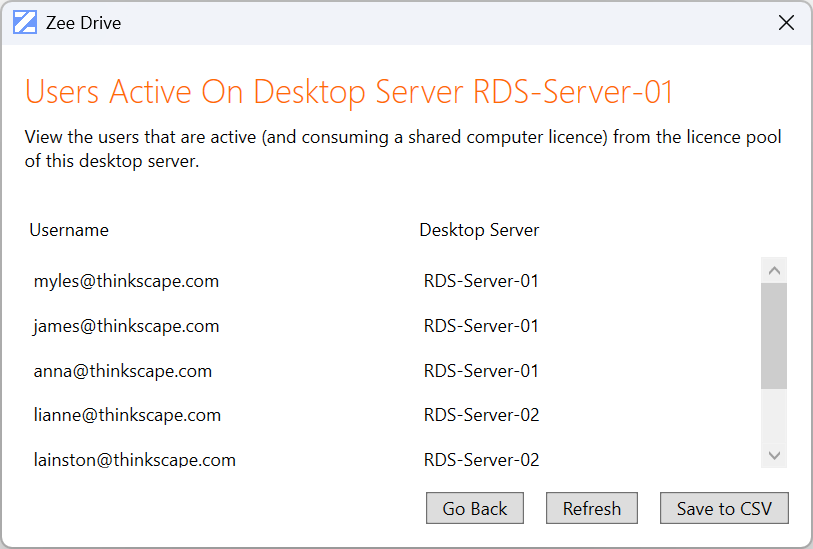
A busy indicator will show briefly, then a list of users that are currently consuming a licence from the licence pool will be listed. If there are multiple desktop servers joined to the same licence pool as the desktop server you selected, then these users will be shown too. Click the Go Back button to return to the desktop server listing

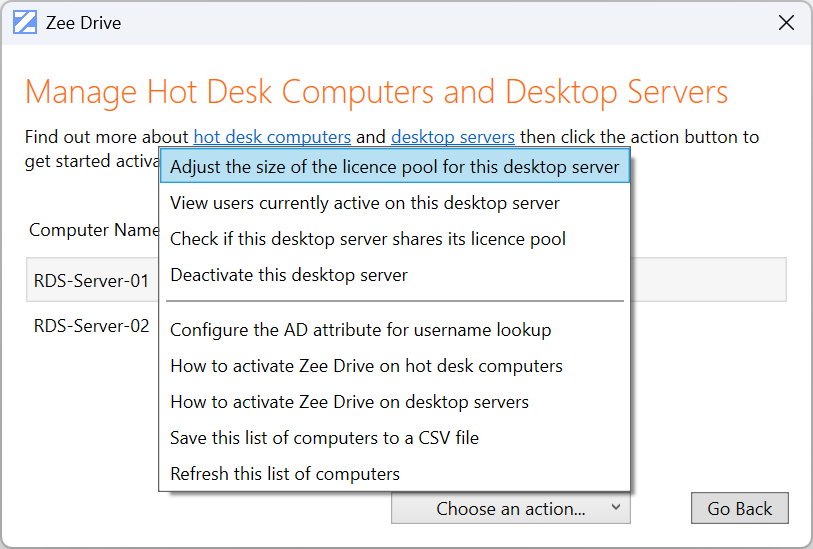
Let's adjust the size of the licence pool. Select a server that is joined to the licence pool you want to adjust then click the Action button and click the option "Adjust the size of the licence pool for this desktop server"

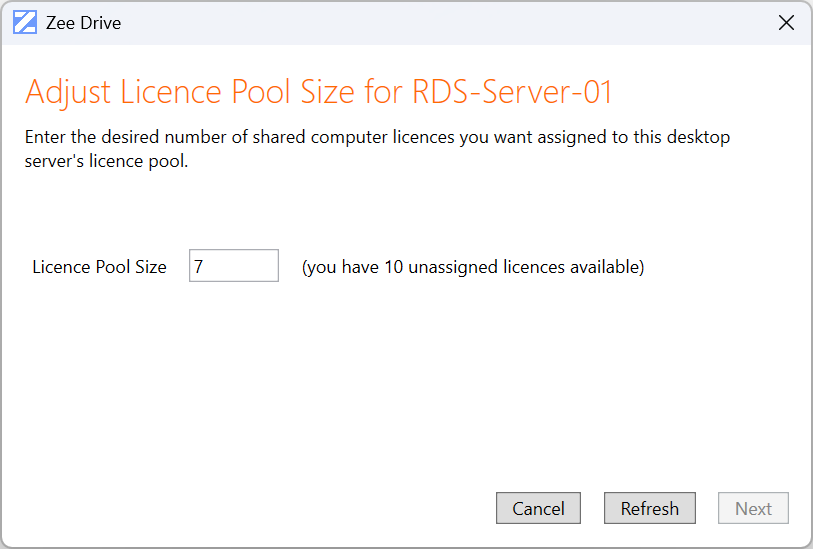
The current size of the licence pool will be displayed, along with the number of unassigned licences you have available. You can only increase the licence pool size by the number of available licences

For this example, we'll increase the licence pool size by 3, for a new total of 10. By increasing the licence pool size by 3, we will be decreasing the number of unassigned licences by 3, so our new total of unassigned licences will be 7 and our new licence pool total will be 10. Click the Next button when you have entered the new licence pool size. Note that if you want to decrease the licence pool size, enter a lower number than 7

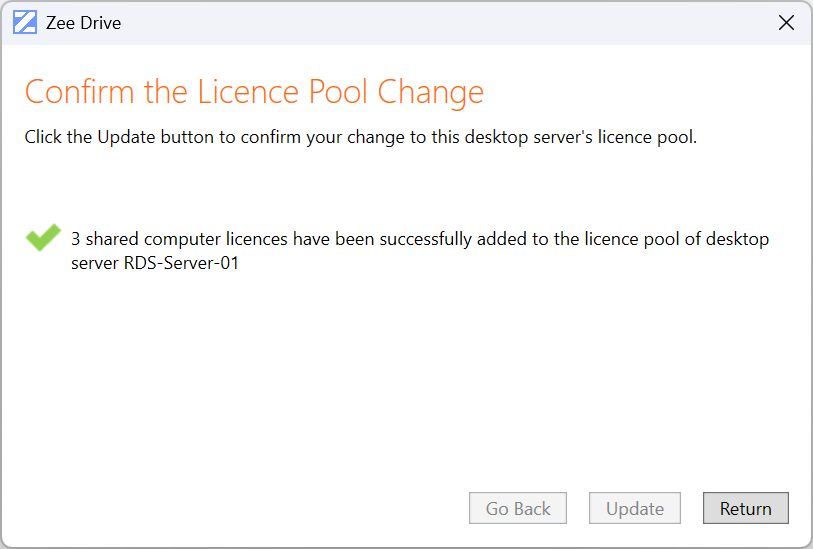
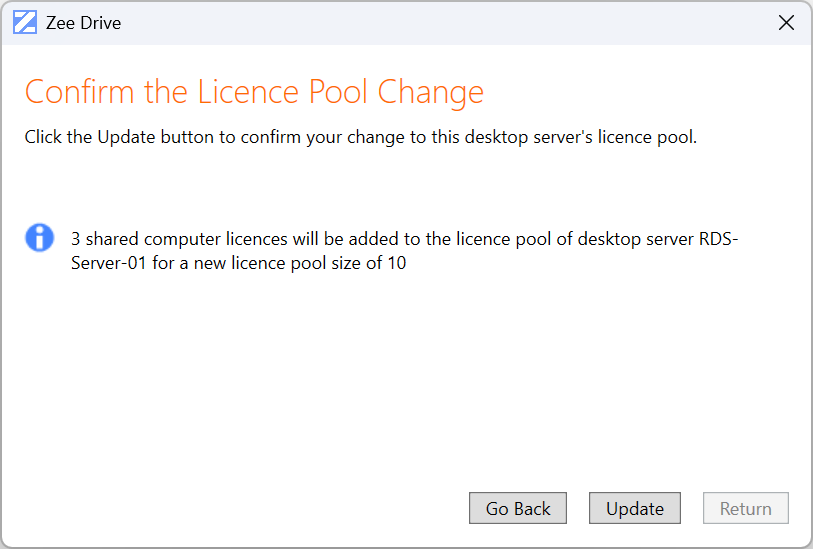
Prior to ZeeDrive making the licence pool change, you are provided with a confirmation page summarising the change. Click the Update button to commit your change
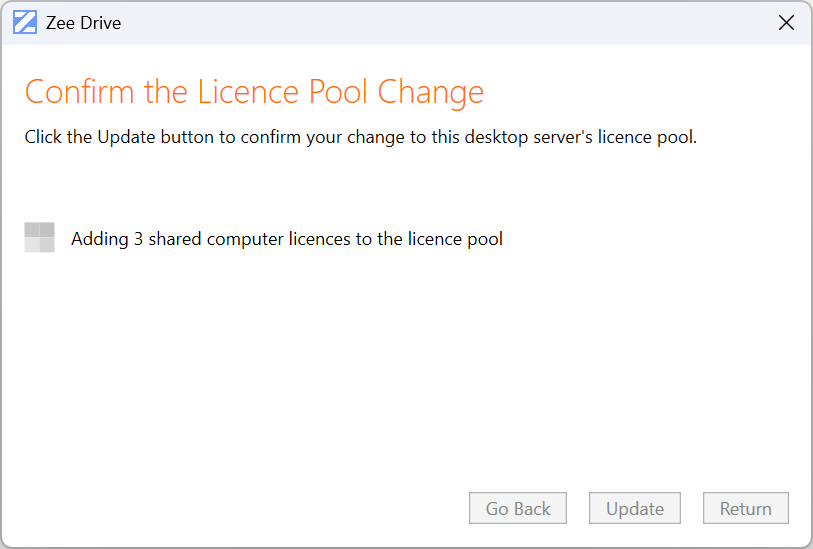
The busy indicator will show whilst the change is applied to the licence pool

After applying the change successfully, a green tick mark will show. You have completed the adjustment to the licence pool size

Last updated