> For the complete documentation index, see [llms.txt](https://docs.zeedrive.com/llms.txt). Markdown versions of documentation pages are available by appending `.md` to page URLs; this page is available as [Markdown](https://docs.zeedrive.com/feature-guide/view-file-version-history-and-restore-previous-versions.md).
# View File Version History And Restore Previous Versions
The version history of files in space.vars.PRODUCT\_NAME mapped drives can be viewed and managed from the Windows File Explorer context menu. space.vars.PRODUCT\_NAME will show a list of the latest versions including the version number, modification date, file size and whom made the change.
A range of file version management functions are available to the user which can assist them in understanding which changes have been made to their document over the course of time. These functions include; opening a version in the associated application, saving one or more versions to the local computer, comparing two versions and viewing the differences (comparison supported for Word documents, Excel spreadsheets, and AutoCAD® drawings), and restoring a version to make it the latest one.
Select a file in File Explorer, right click the mouse button to show the context menu then choose the version history command.
space.vars.PRODUCT\_NAME will then display the recent version history of the selected file.
File versions can be saved to the desktop to assist in discovering when a particular change was made to a file.
Select the file versions to save then choose the save command.
The files will be saved to your chosen location and appended with the version number.
Word and Excel document versions can be compared to view the differences between the versions. Word document differences are shown within Word whilst Excel document differences are shown in the Office 2016 Spreadsheet Compare tool.
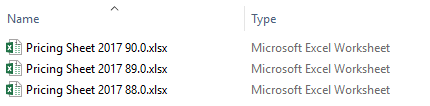
Select the two versions of the document to compare then choose the compare command.
The versions will be downloaded and then compared to show the differences. Word itself is used to show differences between Word documents.
When comparing Excel document versions the Office 2016 Spreadsheet Compare tool is used.
[AutoCAD® DWG drawing revisions can be compared](/feature-guide/view-and-compare-autocad-dwg-drawing-versions.md) if a supported version of AutoCAD® is installed.
For a step-by-step guide to using the version history feature, see [Revert Changes To A File](/user-guide/revert-changes-to-a-file.md)
---
# Agent Instructions
This documentation is published with GitBook. GitBook is the documentation platform designed so that both humans and AI agents can read, navigate, and reason over technical content effectively. Learn more at gitbook.com.
## Querying This Documentation
If you need additional information that is not directly available in this page, you can query the documentation dynamically by asking a question.
Perform an HTTP GET request on the current page URL with the `ask` query parameter, and the optional `goal` query parameter:
```
GET https://docs.zeedrive.com/feature-guide/view-file-version-history-and-restore-previous-versions.md?ask=&goal=
```
`ask` is the immediate question: it should be specific, self-contained, and written in natural language.
`goal` is optional and describes the broader end goal you are ultimately trying to accomplish on behalf of the user. GitBook uses it to tailor the answer towards what is most useful for that goal.
The response will contain a direct answer to the question and relevant excerpts and sources from the documentation.
Use this mechanism when the answer is not explicitly present in the current page, you need clarification or additional context, or you want to retrieve related documentation sections.